


確認したWindowsのバージョン
以下のWindows機で、確認しました。
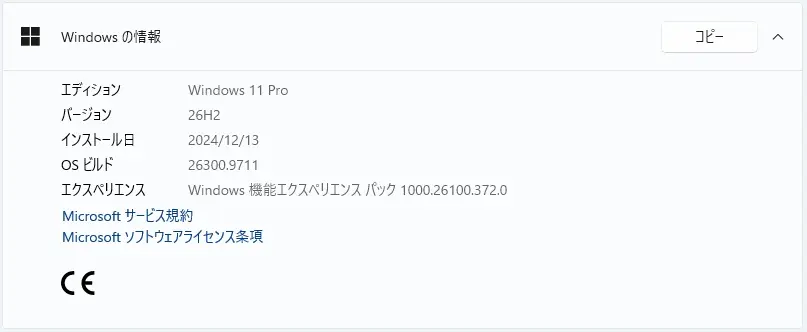
Windows 11 Version 26H2 PC です。
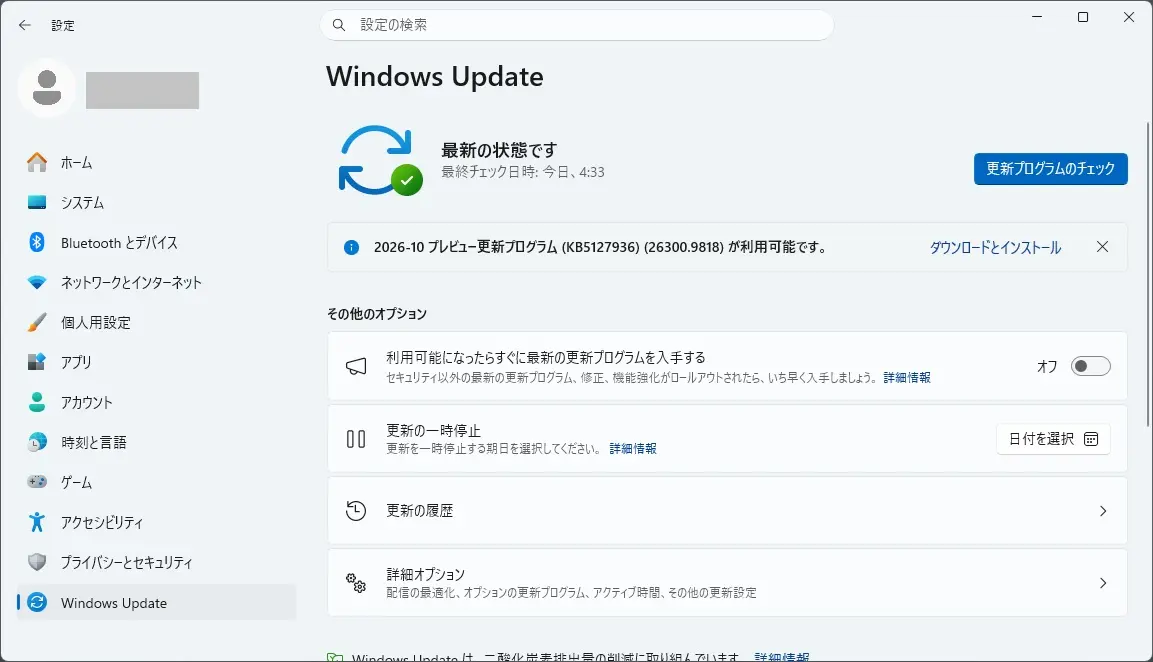
Windows Update に 2026-10 プレビュー更新プログラム (KB5127936) (26300.9818) が表示されました。
更新プログラムの内容
KB5127936 は、こちらから確認できます。

Highlights
This update is available through two release phases: gradual rollout and normal rollout. A gradual rollout delivers an update in phases, so features reach devices over time instead of all at once, meaning availability varies by device. A normal rollout is the broad release to all eligible devices at the same time, usually when it reaches general availability (GA).
Note If you installed earlier updates, your device downloads and installs only the new updates contained in this package.
Gradual rollout
The following summary outlines new Windows 11 PC experiences, along with improvements and fixes. The bold text within the brackets indicates the item or area of the change.
- [Context menu in File Explorer]
- New! This update introduces an updated context menu that is faster, simpler, and more customizable. The updated menu opens more quickly, reduces clutter, and gives you more control over the commands and app extensions that appear when you right-click.
- You can now customize the context menu to better fit how you use Windows. Select Customize menu at the bottom of the context menu to open its Settings page.
- Turn built-in Windows commands, such as Send to and Create shortcut, on or off.
- Add commands such as Print to the context menu.
- Choose which app extensions appear in the main menu or a submenu or hide the app extensions submenu.
- Display Cut, Copy, Paste, Rename, Delete, and Share directly in the menu instead of as a row of icons.
- Move Properties to the bottom of the context menu.
- To personalize the context menu, right-click and select Customize menu, then choose the commands, app extensions, and layout you prefer. No action is required to use the default configuration. To see more options, hold down Shift and right-click on your desktop.
- [File Explorer]
- New! Key file information, such as name, location, and date, now appear in a consistent layout on the File Explorer search results page, making search results easier to scan.
- New! Address bar now supports
~, making it quicker to navigate directly to your user profile folder and subfolders (for example,~\AppData).- New! This update enables dark mode support in the Folder Options dialog in File Explorer.
- [XBOX mode]
- New! This update introduces a refreshed Gaming Task View experience in XBOX mode, featuring a new navigation bar that provides quick access to Exit to Desktop and Power Options, making key system actions easier to access while gaming. 1
- [Settings]
- New! This update improves the Privacy & security page in Windows Settings by grouping related Camera, Microphone, and Location privacy controls and elevating usage information from linked pages onto the main page.
- New! The Device Info card on the Settings Home page, first introduced in the March 2026 preview update KB5079391, is expanding to additional markets. Available to users signed in with a Microsoft account, the card provides a quick view of key PC specifications and usage, with more detailed device information available under Settings > System > About. 1
- This update makes some small visual refinements to the design of the temporary files section under Settings > System > Storage.
- [Phone Link]
- New! You can now hover over a recent message or notification in the Recent section to preview its content directly in Start without opening the item. This experience can be managed under Phone Link > Settings > Start menu personalization.
- [Taskbar]
- New! The update improves animations of app window previews when mousing across app icons in the taskbar.
- This update improves the underlying state persistence of taskbar settings related to multiple monitors across monitor connections and disconnections.
- [Magnifier]
- New! Magnifier now includes a contrast theme toggle that can reduce screen glare while keeping the original colors in photos, videos, and charts. The toggle applies a dark contrast theme by default and is available from the Magnifier toolbar. To choose a different contrast theme, go to Settings > Accessibility > Magnifier. Color inversion remains available as a separate option.
- New! Magnifier now supports per-monitor zoom, allowing each display to use its own zoom level while keeping the magnified view within that display. To use per-monitor zoom, set your displays to Extend under Settings > System > Display.
- To adjust a display, move your pointer to it and press Windows key + Plus (+) or Windows key + Minus (-), use Ctrl + Alt with the mouse wheel or move the Magnifier toolbar to that display and use its controls.
- Per-monitor zoom is on by default. You can turn it off or adjust individual zoom levels from the Magnifier toolbar or under Settings > Accessibility > Magnifier.
- New! Magnifier now supports viewport locking for multi-monitor setups with per-monitor zoom turned on. It keeps the magnified view on a display in place while you move the pointer to another display. The locked display remains interactive. Point to a display and press Ctrl + Windows key + K to lock or unlock its view.
- Press Windows key + Esc to release all locked displays.
- You can change the lock shortcut to Ctrl + Alt + P under Settings > Accessibility > Magnifier.
- [Live Captions]
- New! This update improves Live Captions with a new Include screen reader audio setting, which is off by default. With the setting off, Live Captions will not transcribe audio from screen readers such as Narrator, JAWS, and NVDA, keeping captions focused on microphone and system audio. To turn on this setting, go to Settings > Accessibility > Captions.
- [Narrator]
- New! Narrator now supports reading and navigating math equations in supported Microsoft 365 apps, including Word and PowerPoint, and supported web content in Microsoft Edge (version 153.0.4234.32 and later) and Google Chrome (version 153.0.8010.18 and later). This makes it easier for users who are blind or have low vision to understand and explore equations, formulas, and scientific notation.
- Press Narrator key + Alt + N to turn on math navigation and use the arrow keys to explore parts of an equation. Press Esc to exit.
- Math reading supports English (United States), English (United Kingdom), Traditional Chinese, Finnish, German, and Spanish. You can change the language and other math reading preferences in Narrator settings (Accessibility > Narrator > Math reading).
- [Family Safety]
- New! The update improves family safety messaging when applications are blocked because of age-restricted parental controls.
- [Recovery]
- New! This update enables Windows recovery (WinRE) to automatically reuse eligible Wi-Fi profiles already saved in Windows, including supported certificate-based networks. Devices can now get online automatically during recovery scenarios such as quick machine recovery or cloud rebuild, without preconfiguring Wi-Fi credentials in WinRE. This capability is on by default, and IT admins can disable it. This feature was previously disclosed last month and is now beginning to roll out.
- To learn more, see Networking in WinRE.
- [Cloud rebuild]
- New! This update introduces Cloud rebuild, a new recovery option that reinstalls Windows 11 using a Windows image and device drivers downloaded from Windows Update, including when Windows is unable to start. No USB media or custom image is required. Cloud rebuild includes:
- Drive sanitization: Choose to remove your files or securely erase data using the storage hardware’s erase capability before Windows is reinstalled. Sanitization is irreversible.
- Remote management: IT administrators can configure and start a Cloud rebuild remotely through the Recovery CSP using either the currently installed build or a specified target build.
- To start Cloud rebuild:
- In Windows, go to Settings > System > Recovery, and then select Rebuild PC. The device restarts into the Windows Recovery Environment and starts Cloud rebuild.
- Alternatively, if Windows can’t start, the device enters the Windows Recovery Environment automatically after repeated boot failures. From the Windows Recovery Environment (WinRE), select Troubleshoot > Recovery and uninstall > Cloud rebuild.
- Connect to a wired Ethernet or Wi-Fi network.
- Review the target Windows build, edition, and language, and then confirm the data loss warning before the rebuild begins. You can choose whether to remove files or remove and sanitize files prior to Windows reinstalling.
- To learn more, see Cloud rebuild.
- [Windows settings backup and restore]
- New! This update introduces a Restore Summary that appears after you restore a backup profile to a new device. The summary gives a clear overview of what was successfully restored, including Windows settings and the list of Microsoft Store apps. This improves transparency during device transitions and helps you validate your restore results and continue setup on your new device with confidence.
- For more information see, Windows settings backup and restore overview.
- [App management]
- New! Policy-based inbox app removal now supports multi-session environments. IT administrators can use the existing policy-based app removal capability to manage the removal of supported in-box apps on Windows 11 Enterprise and Education devices in multi-session environments.
- [Adaptive hibernate policy]
- New! This update improves the adaptive hibernate policy to provide more instant-on resumes from Modern Standby while helping preserve battery life when the charge is low. Noticeable changes include less hibernation while the battery is above 80% and hibernating sooner when the battery is below 10%.
- [Security]
- New! This update expands memory integrity protection across eligible devices. Supported PCs may now have memory integrity (HVCI) enabled during updates to help improve security and prepare devices for advanced Windows security features, while respecting existing user or IT administrator choices. For more information, see Expanding memory integrity protection across Windows devices.
- [Windows IPv6 networking support]
- New! Windows now supports IPv6 CLAT for Wi-Fi and Ethernet network interfaces, adding client-side 464XLAT translation so IPv4-only applications can continue reaching IPv4 services from IPv6-only networks. This helps organizations advance IPv6-only deployments while preserving compatibility for legacy IPv4 application scenarios.
- Prefix discovery: PREF64 is discovered through Router Advertisements (RA) by default, with DNS
ipv4only.arpaavailable as a fallback.- Requirements: CLAT requires SLAAC-based IPv6 addressing. DHCPv6 Prefix Delegation and Windows Subsystem for Linux (WSL) are not currently supported.
- Configuration: Enable CLAT by using
netsh interface clat set global permit=enabled pref64fromdns=enabled pref64fromra=enabledor Group Policy under Network > TCPIP Settings > IPv6 Transition Technologies.- [Data Protection API (DPAPI)]
- New! This update adds a warning before prompt-based protect and unprotect operations. The warning explains that this prompt-based experience will be retired in April 2027. If you or an app use these prompts, stop creating new prompt-protected data, use a supported non-interactive protection flow, and decrypt or migrate existing prompt-protected data before retirement. DPAPI operations that do not use the prompt-based flow aren’t affected. For more details, see CRYPTPROTECT_PROMPTSTRUCT structure (dpapi.h).
- [Windows Spotlight]
- This update makes underlying platform changes to generally improve Windows Spotlight reliability on the lock screen.
- [Unicode]
- This update provides Windows text shaping support for Unicode 17.0, helping Windows correctly display and shape newly encoded characters and scripts. Unicode 17.0 added 4,803 characters, including support for four newly encoded scripts: Beria Erfe, Sidetic, Tai Yo, and Tolong Siki. These updates help keep Windows text support current as the Unicode Standard evolves and improve support for languages and writing systems used by people around the world.
1 Feature availability may depend on your device or market
Normal rollout
This non-security update includes quality improvements. The following summary outlines key issues addressed by the KB update after you install it. Also, included are available new features. The bold text within the brackets indicates the item or area of the change.
- [Microsoft Edge on Windows now supports Accelerated App Launch]
- New! Microsoft Edge now opens faster and more consistently on Windows, with the biggest improvements when your device is busy or under load. Accelerated app launch streamlines how Windows launches Edge when it’s already running in the background, reducing launch delays when you open a link or launch Edge from the taskbar or Start menu.
- This capability is available on Windows 11, version 25H2, 26H2, and 26H1, with Microsoft Edge version 150 or later required.
- [App management]
- New! Policy-based in-box app removal now supports multi-session environments. IT administrators can use the existing policy-based app removal capability to manage the removal of supported in-box apps on Windows 11 Enterprise and Education devices in multi-session environments.
- To learn more, see Policy-based in-box app removal.
- [Remote Desktop (Known issue)] Fixed
- This update addresses an issue that prevented non-admin users from establishing Remote Desktop connections to remote devices with Administrator protection enabled. Affected connections might have failed with error 0xC000000D and displayed the message, “The token that was passed to the function is invalid.”
- This update addresses an issue that prevents the “Specify thumbprints of certificates representing trusted .rdp publishers” policy from being configured through Microsoft Intune.
- [Smart App Control (Known issue)] Fixed This update fixes an issue where you might be unable to turn on Smart App Control in the Windows Security app after it has been turned off. On affected devices, the option to turn on Smart App Control might be grayed out.
- [Windows PowerShell] This update adds version 5.1 to the names of Windows PowerShell and Windows PowerShell Integrated Scripting Environment (ISE). On existing devices, some Start menu shortcuts might retain their previous names after you install this update.
- [Audio] This update fixes an issue where HDMI and DisplayPort audio playback might fail on certain AMD graphics cards.
- [Application Control] This update addresses an issue that could prevent a device from starting after using the PS_UpdateAndCompareCIPolicy CIM method.
- [Certificates] This update addresses an issue where TPM attestation identity key (AIK) certificate enrollment could stop responding when a non-Microsoft CNG key storage provider reported a malformed algorithm name or faulted during provider enumeration.
- [Windows Sandbox] This update addresses an issue where Windows Sandbox might close unexpectedly and display error 0x80370106 while in use.
- [BitLocker] This update improves BitLocker pre-boot PIN retry handling to prevent unintended repeated submissions from causing TPM dictionary-attack lockout and recovery.
- [Smart cards] This update adds support for RSA-3072 keys on supported Personal Identity Verification (PIV) smart cards in the Windows smart card minidriver.
- [Always On VPN] This update fixes an issue that affects Always On VPN connections after installing September security update. When automatic protocol selection or protocol fallback was configured, affected VPN connections could remain stuck in a Connecting state or fail to connect after an initial connection attempt failed. In some cases, subsequent connection attempts could display the error, “The specified port is already in use.”
- [Windows Subsystem for Linux (WSL)] This update fixes an issue where nested virtualization might not be available in Windows Subsystem for Linux version 2 (WSL2) on devices with AMD processors.
Components updates
AI components
This release updates the following AI components to version 1.2610.1063.0: Image Search, Content Extraction, Semantic Analysis, and Settings Model.
To learn more, see Release information for AI components.
Servicing stack update (SSU)
Microsoft combines the latest servicing stack update (SSU) for your operating system with the latest cumulative update (LCU). This Windows update includes KB5132402 (Build 26100.9815), which improves the reliability of the Windows update installation process. To learn more about SSUs, see Servicing stack updates.
※日本語ページが確認でき次第、差し替えます。
ハイライト
このアップデートは、段階的展開と通常展開の2段階で利用可能です。段階的な展開により、段階的にアップデートが行われるため、機能が一度にすべてではなく時間をかけてデバイスに届くため、利用可能範囲はデバイスによって異なります。通常の展開とは、通常、一般提供(GA)に達した時点で、すべての対象機器に同時に広範囲にリリースされることです。
注記以前のアップデートをインストールしている場合、デバイスはこのパッケージに含まれる新しいアップデートのみをダウンロード・インストールします。
段階的な展開
以下の要約は、新しいWindows 11 PCの体験と改善点、修正点を概説します。括弧内の太字は、変更の項目または領域を示します。
- [ファイルエクスプローラーのコンテキストメニュー]
- 新たに!このアップデートでは、より速く、シンプルで、よりカスタマイズ可能なコンテキストメニューが導入されました。更新されたメニューはより速く開き、混乱が減り、右クリック時に表示されるコマンドやアプリの拡張機能をより細かくコントロールできます。
- 今では、Windowsの使い方に合わせてコンテキストメニューをカスタマイズできるようになりました。コンテキストメニューの下部にあるカスタマイズメニューを選択して設定ページを開きます。
- Windowsの内蔵コマンド(送信先や作成ショートカット)をオンまたはオフに切り替えます。
- コンテキストメニューに「印刷」などのコマンドを追加してください。
- メインメニューやサブメニューに表示される拡張機能を選ぶか、拡張機能のサブメニューを非表示にしてください。
- アイコンの列ではなく、メニュー内でカット、コピー、貼り付け、名前変更、削除、共有を直接表示してください。
- プロパティをコンテキストメニューの一番下に移動します。
- コンテキストメニューをカスタマイズするには、右クリックしてカスタマイズメニューを選択し、お好みのコマンド、アプリ拡張機能、レイアウトを選択してください。デフォルト設定を使うためには何のアクションも必要ありません。さらに多くのオプションを見るには、Shiftを押しながらデスクトップの右クリックをしてください。
- [ファイルエクスプローラー]
- 新たに!ファイル名、場所、日付などの重要なファイル情報が、ファイルエクスプローラーの検索結果ページで一貫したレイアウトで表示され、検索結果のスキャンが容易になりました。
- 新たに!アドレスバーは現在、ユーザープロファイルフォルダやサブフォルダ(例)に直接アクセスできるようになりました。
~~\AppData- 新たに!このアップデートにより、ファイルエクスプローラーのフォルダオプションダイアログでダークモードのサポートが有効になります。
- [XBOXモード]
- 新たに!このアップデートでは、XBOXモードで刷新されたゲーミングタスクビュー体験が導入され、新しいナビゲーションバーが導入され、デスクトップからデスクトップへと迅速にアクセスできるようになった。これにより、ゲーム中の主要なシステム操作へのアクセスが容易になった。1
- [設定]
- 新たに!このアップデートでは、Windows設定のプライバシー&セキュリティページが、関連するカメラ、マイク、位置情報のプライバシーコントロールをまとめ、リンクされたページから使用情報をメインページに昇格させることで改善されました。
- 新たに!設定ホームページのデバイス情報カードは、2026年3月のプレビューアップデートKB5079391で初めて導入され、今後はさらに多くの市場にも拡大されます。Microsoftアカウントでサインインしたユーザーが利用可能で、主要なPC仕様や使用状況を素早く表示でき、設定>システム概要の「システムについて」>より詳細なデバイス情報も確認できます。1
- このアップデートでは、システム>ストレージの設定にある一時ファイルのデザイン>細かな視覚的調整が行われました。
- [電話リンク]
- 新たに!最近のメッセージや通知にカーソルを合わせると、アイテムを開かずにスタートで直接内容をプレビューできます。この体験はPhone Linkの設定>スタートメニューのパーソナライズ>管理できます。
- [タスクバー]
- 新たに!このアップデートにより、タスクバーのアプリアイコンをマウスで移動した際のアプリウィンドウプレビューのアニメーションが改善されました。
- このアップデートは、複数のモニターの接続・切断にまたがるタスクバー設定の基底状態の持続性を改善します。
- [拡大鏡]
- 新たに!Magnifierにはコントラストテーマの切り替え機能があり、写真、動画、チャートの元の色を保ちつつ画面のグレアを軽減できます。このトグルはデフォルトでダークコントラストのテーマを適用し、拡大鏡のツールバーから利用可能です。異なるコントラストテーマを選ぶには、アクセシビリティ>拡大>設定へ行ってください。カラー反転は別のオプションとして引き続き利用可能です。
- 新たに!拡大鏡はモニターごとのズームに対応し、各ディスプレイが独自のズームレベルを使いながら、拡大された映像はそのディスプレイ内で維持できるようになりました。モニターごとのズームを使うには、システム>ディスプレイの設定でディスプレイを拡張>設定してください。
- ディスプレイを調整するには、ポインターをそのディスプレイに移動させ、Windowsキー+プラス(+)またはWindowsキー+マイナス(-)を押します。マウスホイールでCtrl + Altを押すか、拡大鏡のツールバーをそのディスプレイに移動させて操作します。
- モニターごとのズームはデフォルトでオンです。拡大鏡のツールバーや設定>アクセシビリティ>から個別のズームレベルをオフにするか調整できます。
- 新たに!Magnifierは、マルチモニターセットアップで各モニターごとにズームがオンになった場合のビューポートロックに対応しています。ポインターを別のディスプレイに移動させる間、ディスプレイの拡大表示はそのまま維持されます。ロックされたディスプレイはインタラクティブなままです。ディスプレイを指し示し、Ctrl + Windowsキー + K を押すと、その画面をロックまたはアンロックできます。
- Windowsキー+Escを押して、ロックされたすべてのディスプレイを解除します。
- 設定のアクセシビリティ>拡大鏡でロックショートカットをCtrl + Alt + P>変更できます。
- [ライブ字幕]
- 新たに!このアップデートでは、デフォルトではオフになっている「スクリーンリーダーの音声を含める」設定が追加され、ライブキャプションが改善されました。この設定をオフにすると、Live CaptionsはNarrator、JAWS、NVDAなどのスクリーンリーダーからの音声を書き起こしず、字幕はマイクやシステム音声に集中します。この設定を有効にするには、設定>アクセシビリティ>字幕に行ってください。
- [ナレーター]
- 新たに!Narratorは現在、WordやPowerPointを含むMicrosoft 365アプリでの数学式の読み解きとナビゲーションをサポートし、Microsoft Edge(バージョン153.0.4234.32以降)およびGoogle Chrome(バージョン153.0.8010.18以降)でもウェブコンテンツをサポートしています。これにより、視覚障害や低視力のユーザーが方程式や公式、科学的記法を理解し探求しやすくなります。
- ナレーターキー+Alt+Nを押して数学ナビゲーションをオンにし、矢印キーで方程式の一部を探索できます。Escキーを押して退出してください。
- 数学の読解は英語(アメリカ合衆国)、英語(イギリス)、繁体字中国語、フィンランド語、ドイツ語、スペイン語に対応しています。言語やその他の数学の読書設定はナレーター設定(アクセシビリティ>ナレーター>数学読書)で変更できます。
- 【家族の安全】
- 新たに!このアップデートは、年齢制限のある親の管理のために申請がブロックされた場合の家族の安全メッセージを改善します。
- [回復]
- 新たに!このアップデートにより、Windowsリカバリー(WinRE)は、すでにWindowsに保存されている対象となるWi-Fiプロファイル(対応証明書ベースネットワークを含む)を自動的に再利用できるようになります。デバイスは、WinREでWi-Fi認証情報を事前設定することなく、迅速なマシンリカバリーやクラウド再構築などのリカバリーシナリオ中に自動的にオンラインに接続できるようになりました。この機能はデフォルトでオンで、IT管理者は無効にできます。この機能は先月公開されており、現在展開が始まっています。
- 詳しくはWinREのネットワーキングをご覧ください。
- [雲の再構築]
- 新たに!このアップデートでは、Windows Rebuildという新しいリカバリーオプションが導入されました。これはWindows Updateからダウンロードしたイメージとデバイスドライバーを使ってWindows 11を再インストールするもので、Windowsが起動できない場合も対応します。USBメディアやカスタムイメージは不要です。クラウドの再構築には以下が含まれます:
- ドライブの消毒:Windowsを再インストールする前に、ファイルを削除するか、ストレージハードウェアの消去機能を使って安全にデータを消去する方法を選びましょう。消毒は不可逆的です。
- リモート管理:IT管理者は、現在インストールされているビルドまたは指定されたターゲットビルドを使って、リカバリーCSPを通じてリモートでクラウド再構築を設定・開始できます。
- クラウドの再構築を始めるには:
- Windowsでは、システム>リカバリー>設定に行き、PCの再構築を選択します。デバイスはWindowsリカバリー環境に再起動し、クラウドの再構築を開始します。
- あるいは、Windowsが起動できない場合は、繰り返しの起動失敗後に自動的にWindows復旧環境に入ります。Windowsリカバリー環境(WinRE)から「Errorshoot > Recovery」を選択し、Cloud Rebuild>アンインストールしてください。
- 有線のイーサネットまたはWi-Fiネットワークに接続してください。
- ターゲットとなるWindowsのビルド、エディション、言語を確認し、再構築を始める前にデータ損失警告を確認してください。Windowsを再インストールする前にファイルを削除するか、削除してサニタイズするかを選択できます。
- 詳しくはCloud Rebuildをご覧ください。
- [Windows設定のバックアップと復元]
- 新たに!このアップデートでは、新しいデバイスにバックアッププロファイルを復元した後に表示される復元サマリーが導入されます。要約には、Windowsの設定やMicrosoft Storeアプリのリストなど、何が復元されたかを明確に示しています。これにより、デバイスの移行時の透明性が向上し、復元結果を検証し、新しいデバイスで自信を持ってセットアップを続けられます。
- 詳細はWindows設定のバックアップ&リストア概要をご覧ください。
- [アプリ管理]
- 新たに!ポリシーベースの受信トレイアプリ削除は、現在マルチセッション環境をサポートしています。IT管理者は、既存のポリシーベースのアプリ削除機能を活用し、Windows 11 EnterpriseおよびEducationデバイス上でマルチセッション環境でサポートされているインボックスアプリの削除を管理できます。
- [適応型休眠ポリシー]
- 新たに!このアップデートは、Modern Standbyからの即時履歴書をより迅速に提供しつつ、充電量が少ない時のバッテリー寿命の維持に役立つ適応型休止期間ポリシーを改善します。目立つ変化としては、バッテリーが80%を超えると休止状態が減り、10%未満では休止が早くなります。
- [警備]
- 新たに!このアップデートにより、対象機器間でメモリ整合性保護が拡大されます。対応PCは、アップデート時にメモリ整合性(HVCI)を有効にし、セキュリティ向上や高度なWindowsセキュリティ機能対応の準備を助ける必要があり、既存のユーザーやIT管理者の選択を尊重します。詳細については、「Windowsデバイス間でのメモリ整合性保護の拡大」をご覧ください。
- [Windows IPv6ネットワークサポート]
- 新たに!Windowsは現在、Wi-Fiおよびイーサネットネットワークインターフェース向けにIPv6 CLATをサポートし、クライアント側で464XLAT変換を追加することで、IPv4専用アプリケーションがIPv6専用ネットワークからIPv4サービスにアクセスし続けられるようになりました。これにより、組織はIPv6専用の展開を推進しつつ、従来のIPv4アプリケーションシナリオとの互換性を維持します。
- プレフィックス発見:PREF64はデフォルトでルーター広告(RA)を通じて発見され、DNSはフォールバックとして利用可能です。
ipv4only.arpa- 要件:CLATはSLAACベースのIPv6アドレッシングを必要とします。DHCPv6プレフィックス委任およびLinux用Windowsサブシステム(WSL)は現在サポートされていません。
- 構成:ネットワーク>TCPIP設定>IPv6トランジション技術のグループポリシーを使ってCLATを有効にしてください。
netsh interface clat set global permit=enabled pref64fromdns=enabled pref64fromra=enabled- [データ保護API(DPAPI)]
- 新たに!このアップデートでは、プロンプトベースの保護および解除操作の前に警告が追加されました。警告には、このプロンプトベースの体験が2027年4月に廃止されると説明されています。もしあなたやアプリがこれらのプロンプトを使用している場合は、新しいプロンプト保護データの作成をやめ、対応する非インタラクティブな保護フローを使い、既存のプロンプト保護データを復号または移行してからリタイアしてください。プロンプトベースのフローを使わないDPAPI操作は影響を受けません。詳細については、CRYPTPROTECT_PROMPTSTRUCT構造(dpapi.h)を参照してください。
- [ウィンドウズスポットライト]
- このアップデートでは、ロック画面でのWindows Spotlightの信頼性を向上させるためのプラットフォーム変更が行われています。
- [Unicode]
- このアップデートはUnicode 17.0のWindowsテキストシェーピングサポートを提供し、Windowsが新たにエンコードされた文字やスクリプトを正しく表示・成形するのに役立ちます。Unicode 17.0は4,803文字を追加し、Beria Erfe、Sidetic、Tai Yo、Tolong Sikiの4つの新たにエンコードされた文字をサポートしています。これらのアップデートは、Unicode標準が進化する中でWindowsテキストのサポートを最新の状態に保ち、世界中の人々が使用する言語や文字体系のサポートを向上させるのに役立ちます。
1機能の利用可能範囲は、あなたのデバイスや市場によって異なります
通常の展開
このセキュリティ以外のアップデートには品質の向上が含まれています。以下の要約は、KBアップデートをインストールした後に解決された主要な問題を示しています。また、新機能も含まれています。括弧内の太字は、変更の項目または領域を示します。
- [Windows 版 Microsoft Edge は現在、Accelerated App Launchをサポートしています]
- 新たに!Microsoft EdgeはWindows上でより速く、より安定して起動し、特にデバイスが忙しい時や負荷がかかる時に最も大きな改善が見られます。アプリ起動加速は、Windowsがすでにバックグラウンドで動作しているEdgeを起動する操作を効率化し、リンクを開いたりEdgeをタスクバーやスタートメニューから起動したりする際の起動遅延を軽減します。
- この機能はWindows 11のバージョン25H2、26H2、26H1で利用可能で、Microsoft Edgeバージョン150以降が必要です。
- [アプリ管理]
- 新たに!ポリシーベースのインボックスアプリ削除は、マルチセッション環境に対応しています。IT管理者は、既存のポリシーベースのアプリ削除機能を活用し、Windows 11 EnterpriseおよびEducationデバイス上でマルチセッション環境でサポートされているインボックスアプリの削除を管理できます。
- 詳しくは「ポリシーベースの受信箱アプリ削除」をご覧ください。
- [リモートデスクトップ(既知の問題)]固定
- このアップデートは、管理者保護を有効にした非管理者ユーザーがリモートデバイスにリモートデスクトップ接続を確立できなかった問題を解消します。影響を受けた接続はエラー 0xC000000Dで失敗し、「関数に渡されたトークンは無効です」というメッセージが表示された可能性があります。
- このアップデートは、Microsoft Intuneを通じて「信頼できる.rdpパブリッシャーを表す証明書のサムプリントを指定する」ポリシーの設定ができない問題に対応しています。
- [スマートアプリコントロール(既知の問題)] 修正済みこのアップデートでは、Windowsセキュリティアプリをオフにした後にSmart App Controlをオンにできなくなる問題を修正します。影響を受けたデバイスでは、Smart App Controlを有効にするオプションがグレーアウトになることがあります。
- [Windows PowerShell]このアップデートでは、Windows PowerShellおよびWindows PowerShell統合スクリプト環境(ISE)の名前にバージョン5.1が追加されました。既存のデバイスでは、このアップデートをインストールした後も一部のスタートメニューショートカットが以前の名前のまま残ることがあります。
- [音声]このアップデートは、特定のAMDグラフィックカードでHDMIやDisplayPortの音声再生が失敗する問題を修正します。
- [アプリケーションコントロール]このアップデートは、PS_UpdateAndCompareCIPolicy CIMメソッドを使用した後にデバイスが起動できなくなる問題を解決します。
- [証明書]このアップデートは、非Microsoft CNGキーストレージプロバイダーがアルゴリズム名の誤りを報告したり、プロバイダー列挙中に故障した際にTPM認証IDキー(AIK)証明書登録が停止する問題に対応します。
- [ウィンドウズサンドボックス]このアップデートは、Windows Sandboxが予期せず閉じたり、使用中にエラー 0x80370106が表示されたりする問題を解決します。
- [BitLocker]このアップデートは、BitLockerの起動前のPIN再試行処理を改善し、意図しない繰り返し送信がTPM辞書攻撃によるロックアウトや回復を引き起こすのを防ぎます。
- [スマートカード]このアップデートでは、Windowsスマートカードミニドライバーで対応するPersonal Identity Verification(PIV)スマートカードのRSA-3072キーのサポートが追加されました。
- [常にVPN接続]このアップデートは、9月のセキュリティアップデートをインストールした後にAlways On VPN接続に影響する問題を修正します。自動プロトコル選択やプロトコルのフォールバックを設定すると、影響を受けたVPN接続は接続状態のままだったり、最初の接続試行が失敗した後に接続に失敗したりすることがあります。場合によっては、その後の接続試行時に「指定されたポートはすでに使用中です」というエラーが表示されることもあります。
- [Windows Subsystem for Linux(WSL)]このアップデートは、AMDプロセッサ搭載デバイス上でWindows Subsystem for Linux version 2(WSL2)でネストされた仮想化が利用できない問題を修正します。
コンポーネントのアップデート
AIコンポーネント
本リリースでは、以下のAIコンポーネントがバージョン1.2610.1063.0に更新されました:画像検索、コンテンツ抽出、意味分析、設定モデル。
詳細は「AIコンポーネントのリリース情報」をご覧ください。
サービススタックアップデート(SSU)
Microsoftは、OS向けの最新のサービススタックアップデート(SSU)と最新の累積アップデート(LCU)を組み合わせています。このWindowsアップデートにはKB5132402(ビルド26100.9815)が含まれており、Windowsアップデートのインストールプロセスの信頼性を向上させます。SSUについて詳しく知りたい方は、サービススタックのアップデートをご覧ください。
Known issues in this update
USB Audio Class 1.0 devices with error Code 10 or no output
Symptoms
After installing the September 8, 2026, Windows security update, some USB Audio Class 1.0 devices might fail to start or produce audio. Affected devices might experience one or more of the following symptoms:
- The device displays an error in Device Manager: “This device cannot start (Code 10).”
- No audio output.
- Volume controls are unresponsive or remain at zero.
- Sound settings are unresponsive or unavailable.
This issue is limited to USB Audio Class 1.0 devices.
Resolution
Microsoft is working on a resolution and will update this documentation when more information is available.
※日本語ページが確認でき次第、差し替えます。
今回のアップデートで既知の問題点
エラーコード10または出力なしのUSB Audio Class 1.0デバイス
症状
2026年9月8日のWindowsセキュリティアップデートをインストールした後、一部のUSB Audio Class 1.0デバイスが起動に失敗したり音声を出さなかったりすることがあります。影響を受けたデバイスは、以下のいずれかの症状を経験する可能性があります:
- デバイスマネージャーにエラーが表示されます:「このデバイスは起動できません(コード10)」
- 音声出力がありません。
- 音量コントロールが反応しないか、ゼロのままです。
- サウンド設定が反応しないか、利用できません。
この問題はUSB Audio Class 1.0デバイスに限定されています。
解決
マイクロソフトは解決策に向けて取り組んでおり、さらなる情報が入り次第、このドキュメントを更新する予定です。
まとめ
2026年10月29日、 Windows Updateに 2026-10 プレビュー更新プログラム (KB5127936) (26300.9818) が表示されました。
現在、特に不具合は見受けられませんので、様子見としました。
セキュリティ更新プログラム リリース スケジュール (2026年) は、こちらから確認できます。

次回のセキュリティ更新プログラム公開予定日は、日本標準時2026 年 11 月 11 日 (水)となっています。
Windows 11 Home and Pro において、
Version 24H2 は、2026年10月13日でサポート終了が予定されています。
Version 23H2 は、2025年11月11日でサポート終了となりました。
Version 22H2 は、2024年10月8日でサポート終了となりました。
Version 21H2 は、2023年10月10日でサポート終了となりました。

バージョン 開始日 終了日 Version 26H2 2026年9月28日 2028年10月9日 Version 26H1 2026年2月9日 2028年3月14日 Version 25H2 2025年9月29日 2027年10月12日 Version 24H2 2024年9月30日 2026年10月13日 Version 23H2 2023年10月30日 2025年11月11日 Version 22H2 2022年9月19日 2024年10月8日 Version 21H2 2021年10月3日 2023年10月10日
Version 24H2 は、Version 25H2 へのアップデートを行うことで、2027年10月12日まで、セキュリティ パッチ が提供されるようになります。
Windows Update に、Version 25H2 が表示されましたので、25H2にしてみました。

Windows Update に、Version 26H2 が表示されましたので、26H2にしてみました。